
Error copying large files when extracting Windows ISO to USB memory stick (FAT32)

UEFI BIOS is required for hard disk partitions used as boot volume ([C:]) that are over 2TB in size.    When you enable UEFI BIOS, hard disks will be initialized using GPT partitioning scheme instead of MBR partitioning scheme.  Also, UEFI BIOS will detect any valid bootable operating systems on a FAT32 formatted USB memory stick automatically.  USB memory sticks do not have to be made ‘bootable’; there is no requirement to run ‘bootsect.exe /NT60 <drive letter>’.

Problem

When I format a USB memory stick as FAT32 and attempt to extract a Windows ISO, I receive an error copying one or more (large) files.

Solution

Use disk partitioning utility Rufus released under General Public License (GPL) to format using [GPT for UEFI] partitioning scheme and [Large FAT32] file system.  Browse to the ISO image or extract manually later.
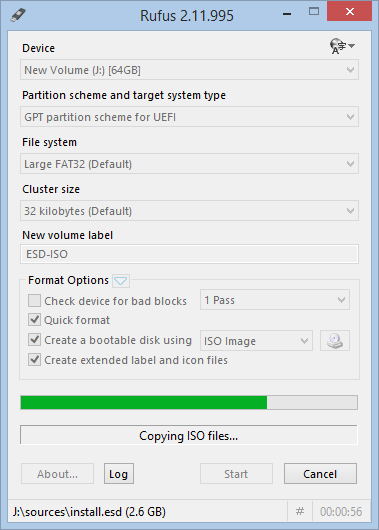
win8x64_uefi

Your computer should now be able to boot from this USB memory stick.  Press F12 for boot menu or boot options.

Hard disk emergency data recovery (electrical fault)

Symptoms

Hard disk had been connected to a new modular power supply but the old modular power supply’s SATA power cables were reused.

Cause

Modular power supply leads are not standardized unfortunately.  If you buy a Thermaltake modular power supply to replace a Seasonic modular power supply, you have to install the Thermaltake SATA power cables as well, otherwise you risk supplying +7Vdc or +12Vdc to the GND pins of the hard disk, or +12Vdc to the +7Vdc pin of the hard disk.

Continue reading “Hard disk emergency data recovery (electrical fault)”

How to bypass Google Authenticator in WordPress (or Joomla)

So you have configured WordPress to use 2-factor authentication – well done.  You are most likely using the Google Authenticator app on your mobile phone to generate the required pin code.

Problem

But what to do if your mobile phone gets damaged -or even worse- stolen?  How can you logon to WordPress to recover or change the Secret Key necessary to configure Google Authenticator on another mobile phone?

Solution

Temporarily rename the Google Authenticator plugin folder inside WordPress.  The plugin will no longer load and 2-factor authentication is temporarily disabled.  You can now simply login with username and password and retrieve or change the Secret Key.  After you rename the Google Authenticator plugin folder inside WordPress back to its original name, 2-factor authentication is again enabled.

The process in more detail:

cd wp-content/plugins
mv google-authenticator google-authenticator.tmp
2-factor authentication is now disabled.
Login to WordPress using just username and password authentication.
Go to Dashboard | Users
Generate a new Secret Key or just write down the existing Secret key.
Configure Google Authenticator on a mobile phone.
mv google-authenticator.tmp google-authenticator
2-factor authentication is now enabled
(Logout and) Login to WordPress using 2-factor authentication.

This way there is no need to change table fields in the database.

Alternatively there are Google Authentication apps (not made by Google) that offer extra features like exporting the Secret Keys or transferring Secret Keys between phones.  Some even offer to store the Secret Key(s) on the internet for you.

I prefer simply regaining access to the original keys rather than storing keys in multiple locations or in a non-trusted environment.